Navigate on your Wear OS smartwatch
with WinGPS Marine Plus for Android
Navigation data always at your fingertips, without picking up your phone. The new WinGPS Marine app for Wear OS displays live data from your navigation system directly on your wrist: course, speed, depth, wind data, route info, and more.
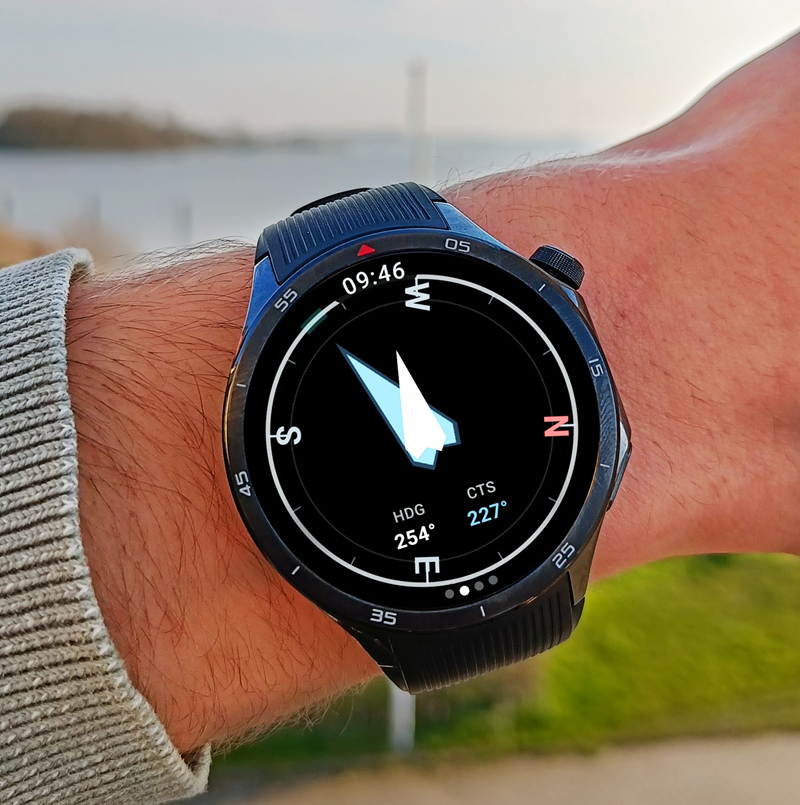
Customize the instrument panel yourself: choose which fields you see and in what order. The compass screen guides you with vibrations and an audible signal when you approach your desired course. Alarms from your navigation system appear directly on the watch, even when the app is running in the background.
The app works on Samsung Galaxy Watch, Google Pixel Watch, and other Wear OS watches, and connects via Bluetooth to WinGPS Marine Plus on your Android phone.
You can find a complete overview of the functionalities of WinGPS on your smartwatch, and installation tips, further down this page.
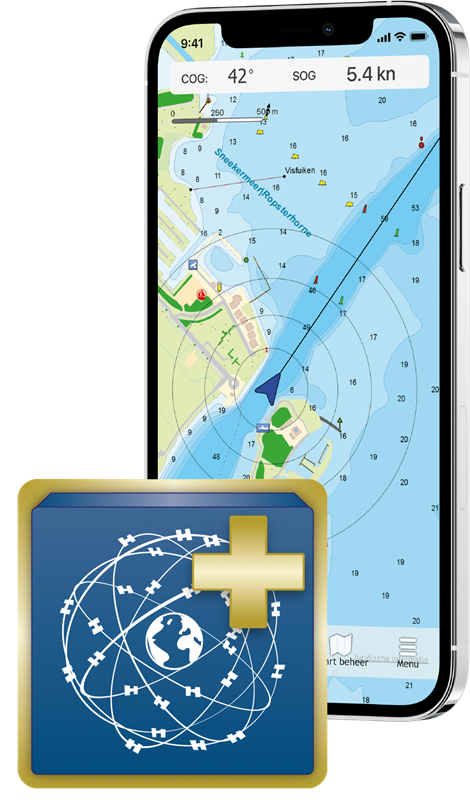
To use WinGPS on your smartwatch, you need our navigation app 'WinGPS Marine Plus' for Android.
With this navigation app you can see your position, create routes over open water and over the extensive route network (including bridges and locks information), download GRIB files for weather forecasts, view current and tide data on the Dutch coast, connect on-board instruments such as AIS, and more.
Ideal for all types of skippers: use WinGPS Marine Plus as a handy backup on your yacht, or as main navigation for day trips on a sloop, canoe or rental boat.
WinGPS Feature Overview on Smartwear
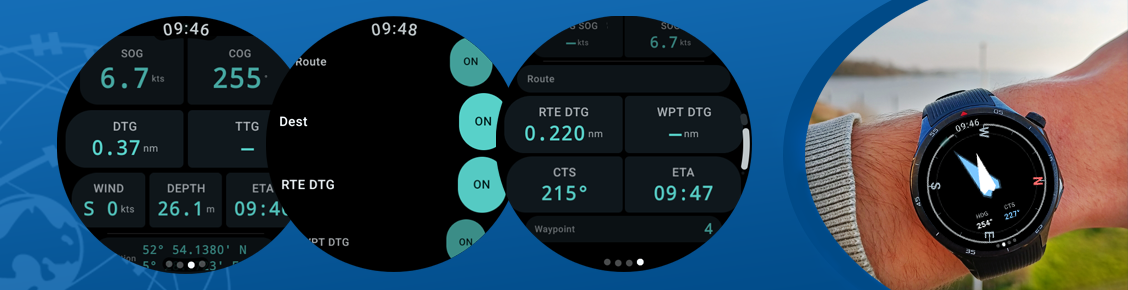
The WinGPS Marine Companion app for Wear OS displays live data from your navigation system directly on your smartwatch.
LIVE NAVIGATION TOOLS
The heart of the app: a fully configurable instrument panel on your wrist. You choose which data you see and in what order – drag them to your preference.
Available fields:
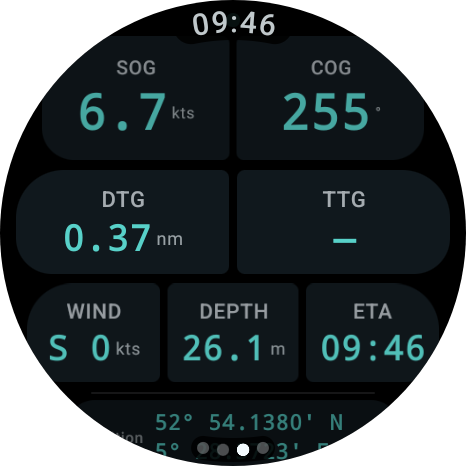
- COG - Course over Ground
- SOG - Speed over Ground
- STW - Speed through Water
- HDG - Compass Direction
- VMG - Speed Towards Waypoint
- TTG - Estimated Travel Time to Waypoint
- ETA - Estimated Arrival Time
- CTS - Course to Steer
- Depth - Water Depth Under the Keel
- Wind - Wind Speed and Direction (Real and Estimated)
- Position - Latitude and Longitude
COMPASS DISPLAY WITH HAPTIMIC GUIDANCE
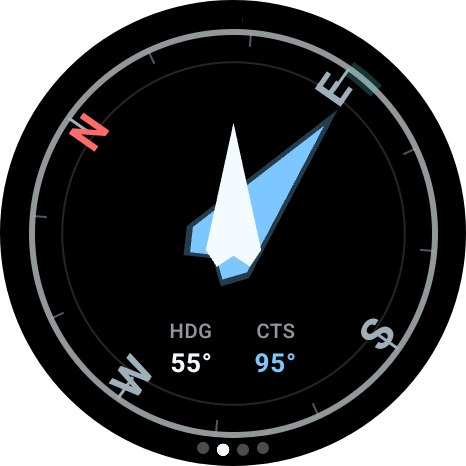
- Blue arrow points to the next waypoint
- White arrow shows the direction of your wristband
- Green arc marks the 10-degree "on course" zone
- Approach vibration: when you get close to the desired course,
the watch will vibrate to indicate that the course is correct - Audio signal at less than 3 degrees deviation
- Chart letters (N/E/S/W) rotate with the course - North always
points to geographic north
ROUTE INFORMATION
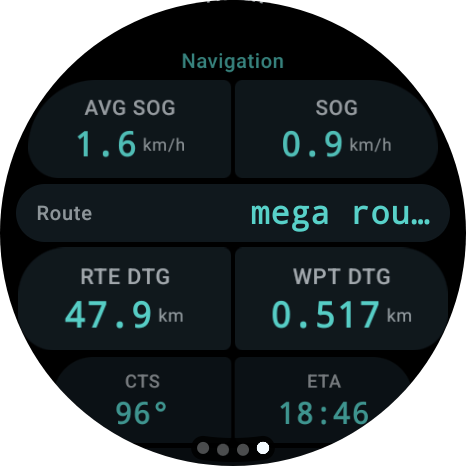
on one screen:
- Route name and destination
- Name of the next waypoint
- Distance to waypoint and total remaining route distance
- Average speed and VMG
- Course to sail and estimated arrival time
- XTE bar - when connected to Windows, a visual indicator that
shows whether you are deviating left or right from your route - Stop or change route directly from the watch
- List of recently used routes, instantly activated
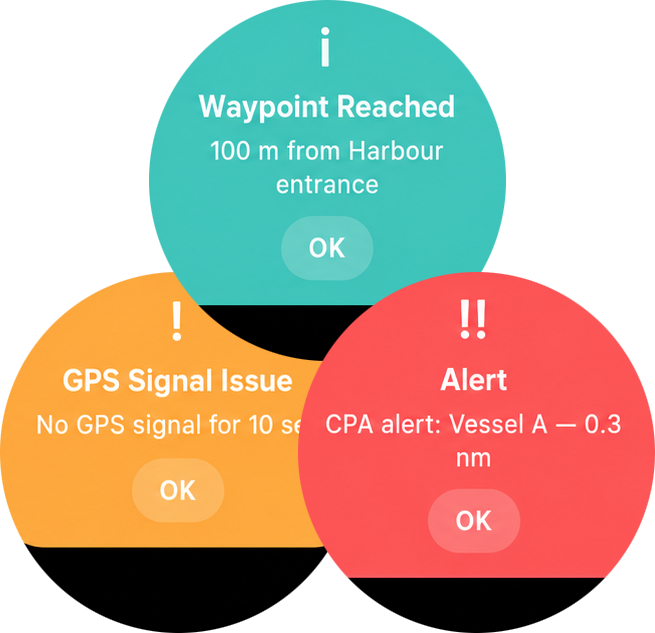
ALARM NOTIFICATIONS
When an alarm sounds on your navigation system, it appears immediately as a full-screen notification on your watch - even if the app is running in the background:
- Color coding by severity: red (critical),
orange (warning), blue (info) - Clear title and message description
- Notifications are tracked in the notification list, so
you don't miss anything
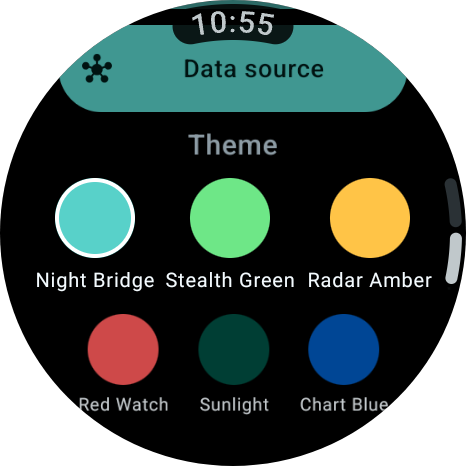
Choose the theme that suits the conditions:
- Night Bridge (standard, dark) - Night navigation, aqua accent
- Stealth Green (dark) - Night, minimal glare
- Radar Amber (dark) - Radar style, gold accent
- Red Watch (dark) - Night navigation, red accent
- Daylight (light) - Daytime, warm light
- Nautical Blue (light) - Daytime, nautical blue
ALWAYS-ON DISPLAY (AMBIENT MODE)
When you lower your wrist, the watch switches to a low-power display that protects your OLED screen:
- Compass screen shows only the course ring and CTS value
- Instrument screen shows only COG and SOG
- Navigation screen shows route name and current speed
- No animations, no unnecessary elements
CROWN CONTROL
All scrollable screens respond to the crown wheel or the rotating bezel of your watch, with haptic feedback at every step.
TWO DATA SOURCES
The app works with both the Android phone and directly with WinGPS on your Windows PC:
- Bluetooth - pair with the WinGPS Marine app on your phone
- Wi-Fi - connect directly to WinGPS on your onboard PC via UDP (in early development)
ALWAYS VISIBLE WHILE SAILING
As long as WinGPS Marine is active, a shortcut appears at the bottom of your watch face. One tap and you are back in the app, without having to search.
WinGPS Installation Tips on Smartwear
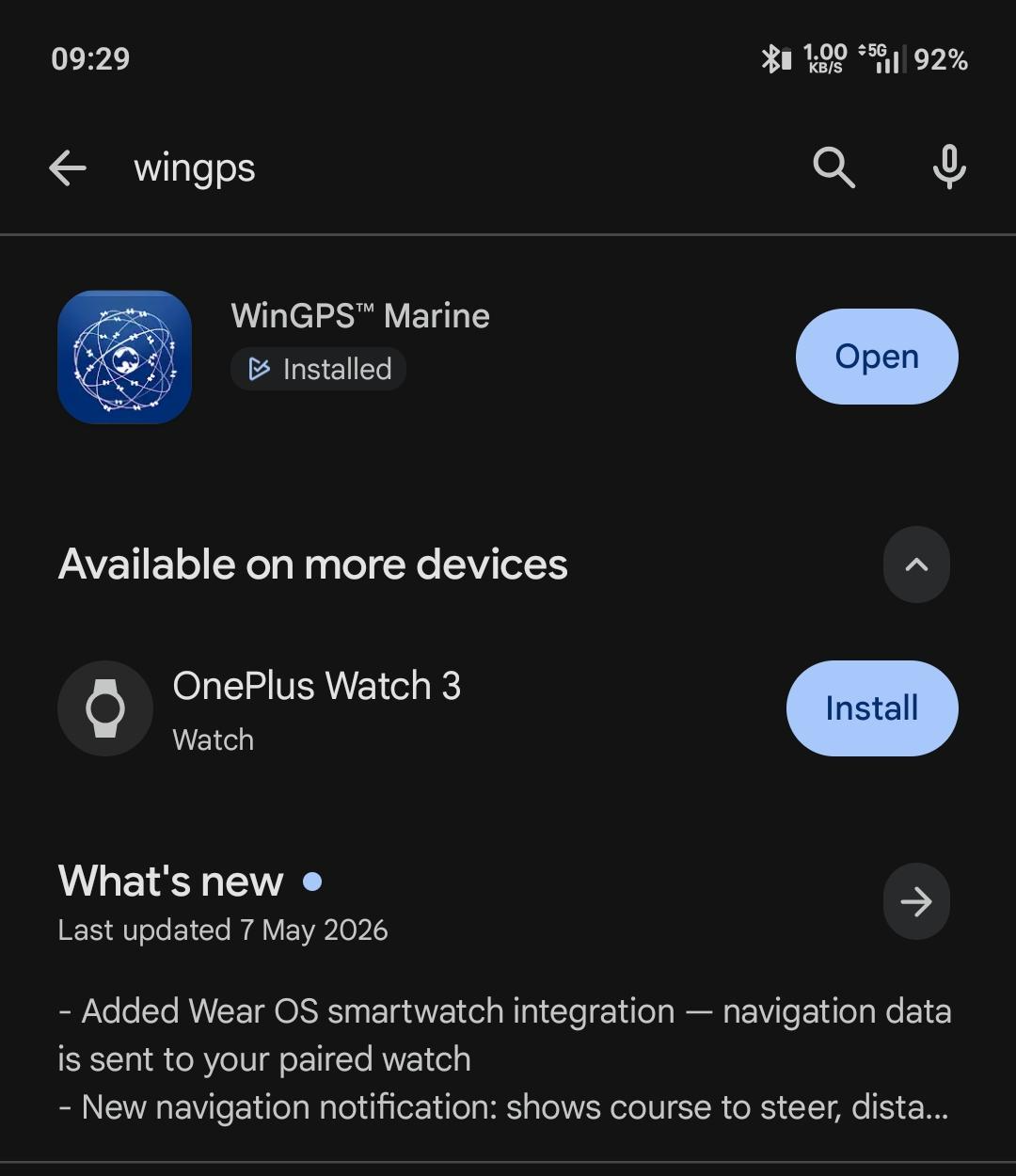
This is the fastest way to get started:
1. Open the Play Store on your phone
2. Search for "WinGPS Marine"
3. Open the app page
You will now see one of the following situations:
Situation A - Everything is in order:
Below or next to the installation button, you will see a second option such as "Install on [name of your watch]". Go directly to step 2.
Situation B - Only phone installation button visible:
Your watch is not recognized. Go to the "Having trouble?" section at the bottom of this manual.
Situation C - "Not available for your devices":
Your watch is not supported. Check the list under "Does NOT work on" at the top of this manual.
STEP 2 - INSTALL THE APP ON YOUR WATCH
1. Open the Play Store on your phone
2. Search for "WinGPS Marine" and open the app page
3. Tap "Install on [name of your watch]"
4. The installation starts automatically on your watch - you do not need to do anything else on the watch itself
5. Wait 1 to 2 minutes. Make sure your watch stays near your phone and that Bluetooth is turned on.
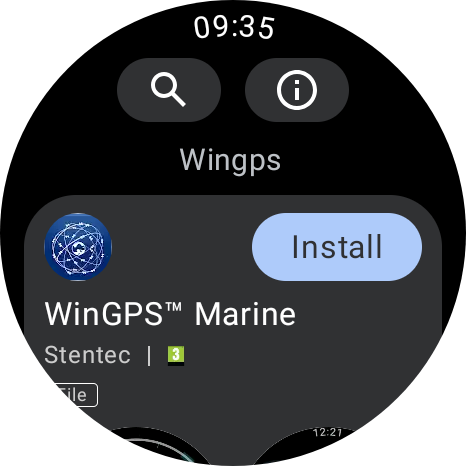
You can also start the installation via the Play Store on the watch itself:
1. Press the button on the side of your watch to open the menu
2. Scroll down to Play Store
3. Search for "WinGPS Marine"
4. Tap Install
STEP 3 - OPEN THE APP ON YOUR WATCH
1. Press the button on the side of your watch to open the app overview
2. Scroll through the list and look for WinGPS Marine
3. Tap on it to open the app
4. Start WinGPS Marine on your phone (or tablet)
5. As soon as the phone app is active and receiving navigation data, it will automatically appear on your watch
------
DID THIS STEPS NOT WORK?
The app is not in the list on my watch
Please wait a moment - apps can sometimes take 5 minutes to install. Ensure your watch:
- Is charged (at least 20% battery)
- Is connected to your phone (Bluetooth on)
- Is connected to Wi-Fi or stays near the phone
1. Turn Bluetooth off and on again on your phone
2. Restart your watch (press and hold the side button > "Restart")
3. Try the installation again via step 2
My watch is not recognized in the Play Store
The most common causes:
1. Watch is not paired with your phone
Your watch must be connected to your phone via a companion app. Which app you need depends on your watch brand:
Samsung Galaxy Watch -> Galaxy Wearable
Google Pixel Watch -> Pixel Watch
OnePlus Watch -> OHealth
Oppo Watch -> OHealth
Xiaomi Watch -> Xiaomi Wearable
Mobvoi TicWatch -> Mobvoi Health
Fossil Gen 6 -> Fossil Smartwatches
TAG Heuer Connected E4 -> E3/E4 TAG Heuer Connected
Montblanc Summit 3 -> Montblanc Summit
Hublot Big Bang e Gen 3 -> Hublot Big Bang e Gen3
Search for the corresponding app in the Play Store, install it if you haven't already, and follow the on-screen pairing guide.
2. Phone and watch use different Google accounts
Phone and watch must be logged in with the exact same Google account (Gmail address).
Check the account on your phone:
1. Open the Play Store on your phone
2. Tap your profile picture or initials in the top right corner
3. At the top, you will see the email address you are logged in with - remember this
Check the account on your watch:
1. Open the Play Store on your watch
2. Scroll all the way down
3. Tap Accounts
4. Check if the same email address is listed here
Are there different email addresses listed? Then you need to link a new account on the watch. You do this via your watch's settings: go to Settings > Other > Google > Accounts. The exact naming may vary slightly depending on the watch brand, but the Google button is almost always located under "Other".
3. Watch is not visible in the Play Store
1. Open the Play Store on your phone
2. Tap your profile picture or initials in the top right
3. Tap "Manage apps and devices"
4. Tap the "Manage" tab at the top
5. Tap "Devices" in the top right
6. Is your watch in the list and does it say "Active"? Then everything is fine - try step 1 again.
7. Is your watch not listed or does it say "Inactive"? Then make sure your watch is turned on, is near your phone, and that Bluetooth is turned on on your phone. Then try again.
QUESTIONS OR PROBLEMS?
Send an email to helpdesk@stentec.com containing:
- The brand and model of your watch
- The Android version of your phone (found via Settings > About phone)
- A description of what is going wrong